


Are you really okay with typing the same half-baked prompt over and over, then acting surprised when the AI gives you oatmeal instead of strategy? That dinosaur approach needs to go. Prompt Architects is built to fix exactly that problem: write simply, turn it into a structured prompt, save what works, and keep your best prompts organized instead of scattered like digital confetti.
If you use AI regularly, this is the difference between improvising every session and actually building a repeatable system. Prompt Architects gives you a browser sidebar, prompt improvement tools, saved libraries, search-based templates, and dedicated collections for general prompts, image prompts, video prompts, and even web design and UX use cases.
Here’s how it all works from start to finish.
Start by logging in and installing the Prompt Architects extension
The setup is straightforward. Log in from the homepage, and you’re redirected to the main dashboard where the core features live.
From there, install the Chrome extension using the button in the bottom-left area of the app. That opens the Chrome Web Store page, where you install the extension and pin it to your browser so it’s always within reach.
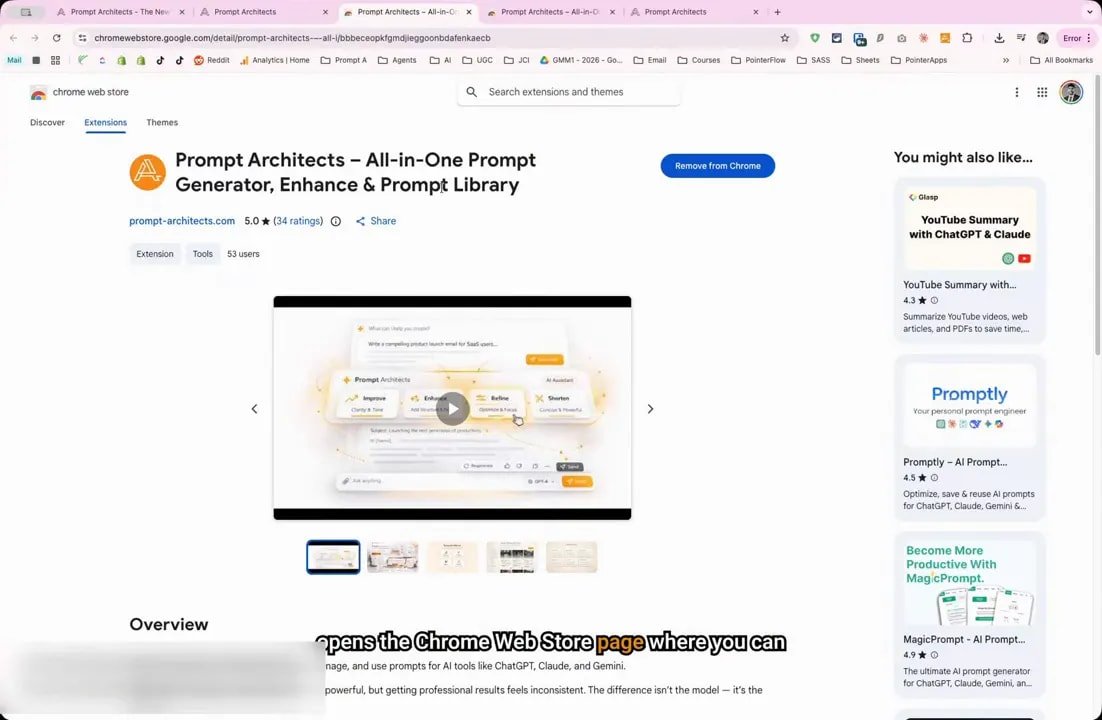
This matters more than it sounds. If a tool takes too many clicks to access, people stop using it. Then they drift back to the same messy workflow they swore they were done with. Pinning Prompt Architects keeps it available the moment you need it.
Open the sidebar and keep Prompt Architects with you across platforms
Once the extension is installed, click the Prompt Architects icon in your browser toolbar. The extension opens as a sidebar on the right side of the browser.
That sidebar is the command center. It stays active while moving between different AI tools and websites, including ChatGPT, Claude, Gemini, and other places you work. So instead of hopping between tabs like a caffeinated raccoon, you can keep your prompt tools beside whatever you’re doing.
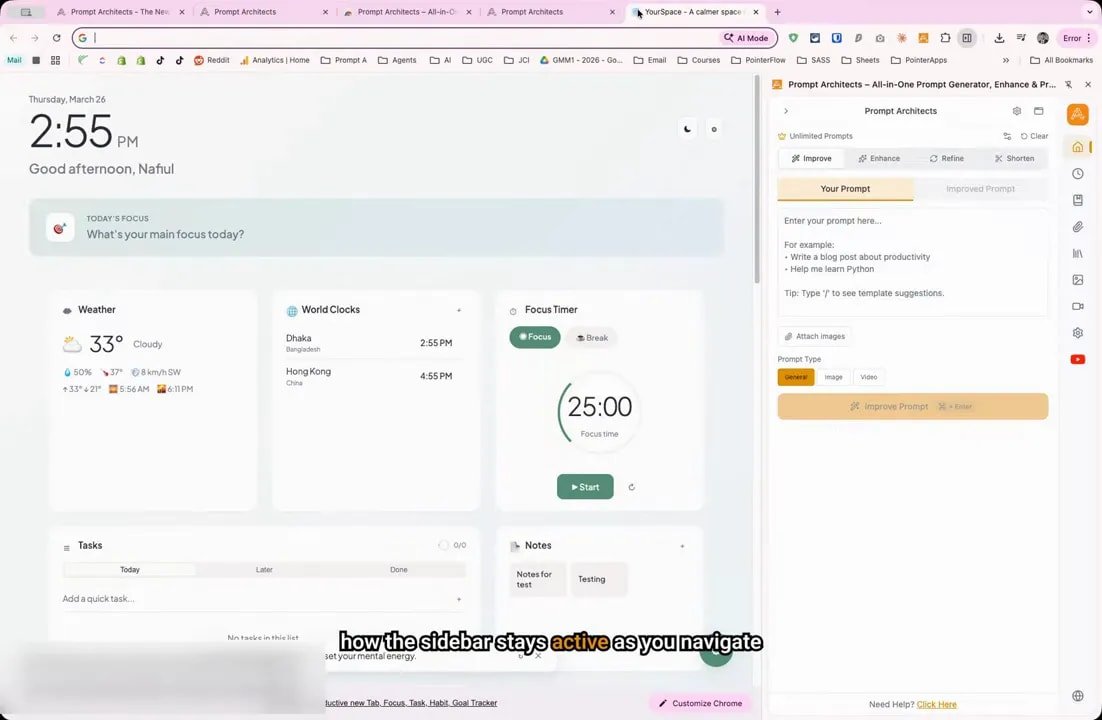
The practical advantage is obvious:
Your tools stay visible while you work
Your prompts stay organized in one place
Your workflow stays consistent across platforms
Improve a prompt directly inside ChatGPT
This is where Prompt Architects starts earning its keep.
Inside ChatGPT, the extension adds an icon directly to the input field. You type your normal prompt first. Nothing fancy. For example, a simple request for a LinkedIn growth plan.
Then click the Improve Prompt icon next to your text.
The tool generates a more structured version of your prompt in a pop-up. Instead of a loose sentence, you get something the AI can actually work with clearly: roles, instructions, and detailed requirements.
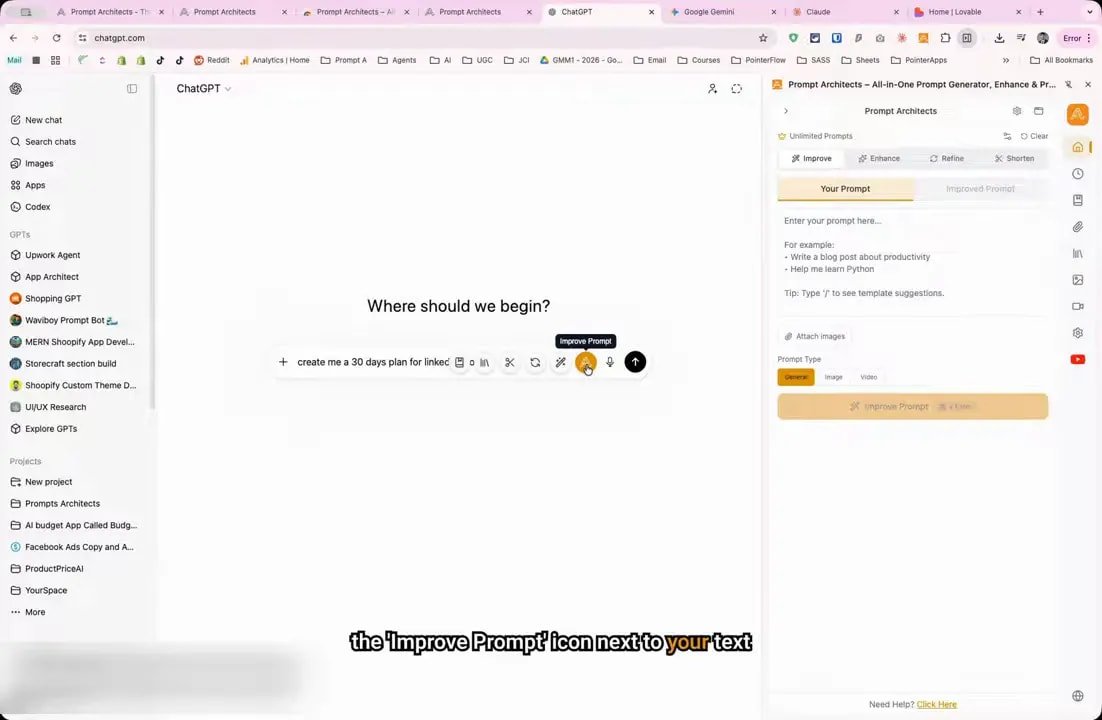
That’s the shift. You stop tossing vague requests into the void and hoping for brilliance. Prompt Architects gives the AI better scaffolding, which usually leads to more precise output.
When you scroll through the improved prompt, you’ll see the structure becoming more deliberate, including elements like:
Clear roles for the AI to assume
Specific instructions about the task
Detailed requirements that sharpen the result
If your usual prompt style is “make me a plan” and then you wonder why the answer feels generic, well, there’s your problem. Using that method is like trying to text on a typewriter.
Use the Enhance feature when your starting point is too basic
Sometimes your initial idea is little more than a rough request. That’s what the Enhance tab is for.
Open the Enhance tab in the sidebar and type a basic prompt into the input field. Keep it simple. The point is not to impress the tool with your genius. The point is to give it a starting point.
Click Enhance Prompt, and Prompt Architects expands that basic request into a more detailed and structured version.
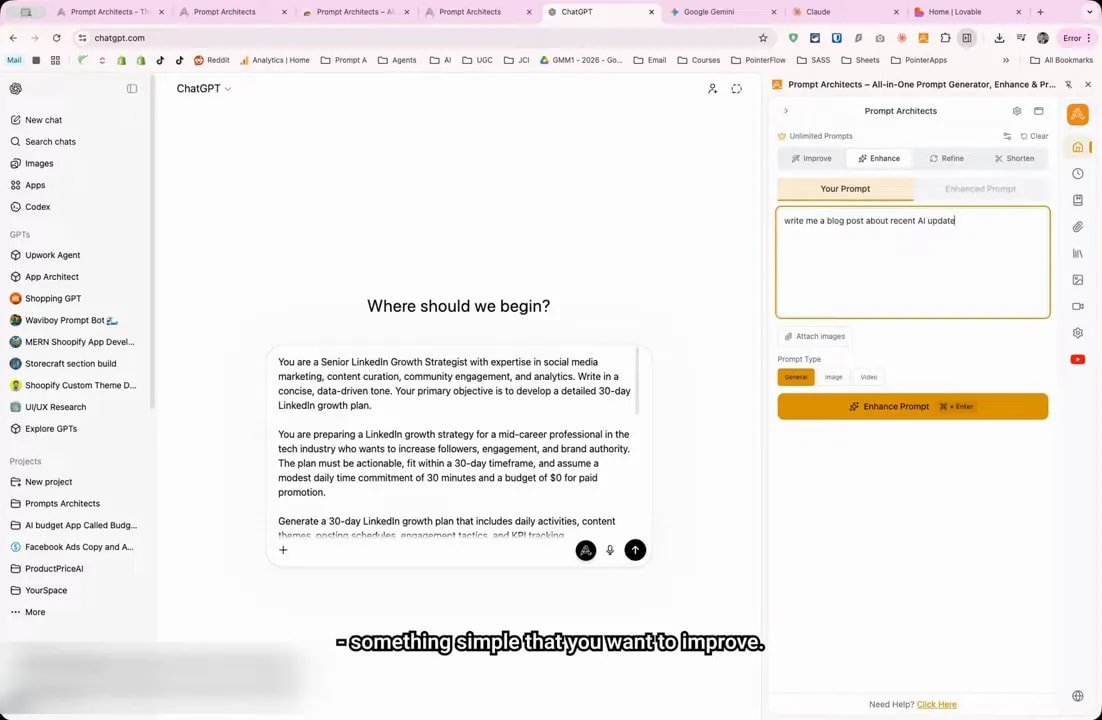
Once the enhanced prompt is ready, copy it and paste it into ChatGPT. If you want to push it further, you can then use the in-field Improve Prompt icon again.
That gives you a layered workflow:
Start with a basic idea
Use Enhance to add structure and depth
Paste it into ChatGPT
Use Improve Prompt again for another round of refinement
This is useful because not every prompt needs the same amount of treatment. Sometimes you just need a better draft. Other times you want multiple options to compare. Prompt Architects gives you both.
Refine or shorten prompts when precision matters
Not every prompt problem is solved by making it longer.
Sometimes the issue is precision. Sometimes it’s bloat. Sometimes your prompt has become a rambling monster stitched together from five old versions and a prayer.
Prompt Architects includes additional tools for that:
Refine to improve prompt precision
Shorten to make a prompt more concise
These tools give you tighter control over prompt length and specificity. That’s important when you already know what you want and don’t need the tool adding fluff for the sake of looking clever.
Think of it this way:
Use Enhance when the idea is too raw
Use Improve Prompt when you want a stronger structure in context
Use Refine when the wording needs sharper intent
Use Shorten when the prompt needs to stop rambling and get to the point
Access your prompt history and saved libraries
Here’s where Prompt Architects stops being a one-off helper and becomes a real system.
You can open your prompt history to see recently generated prompts. That means you don’t have to recreate something good from memory, which is great because memory is unreliable and “I’ll remember it later” is one of the internet’s favorite lies.
You can also open your saved prompts library to store and reuse the prompts that perform best.
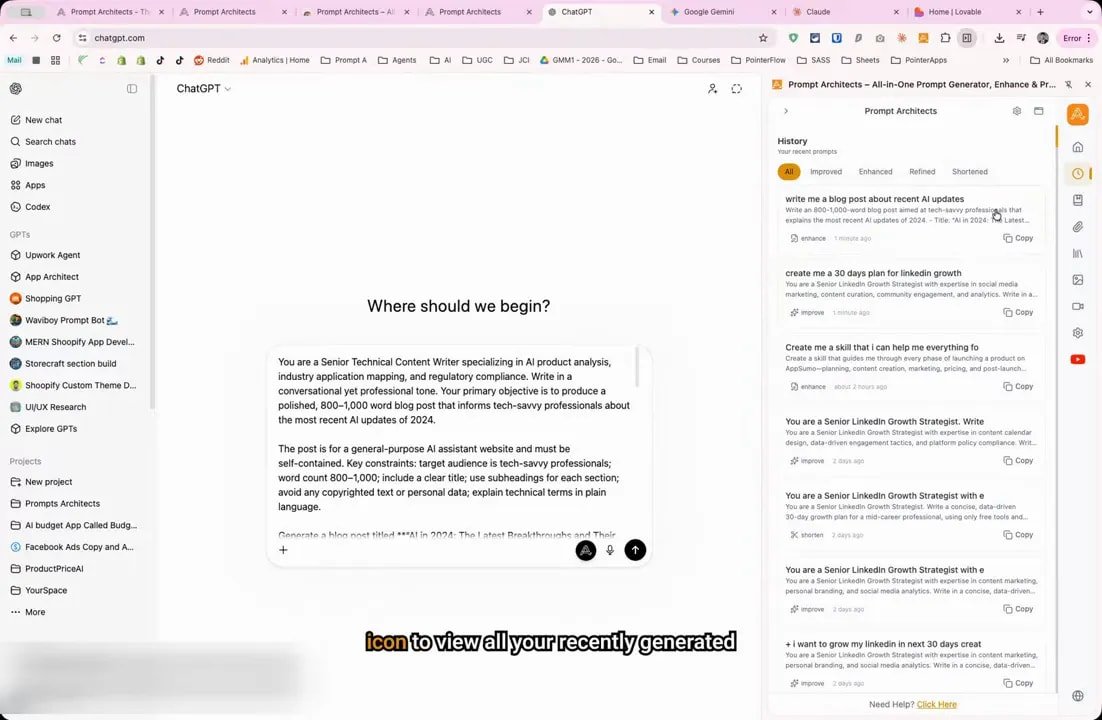
This creates a working library of proven prompts instead of forcing you to start from zero every time. Over time, that’s where serious efficiency comes from.
Your saved library helps you:
Reuse prompts that already work
Keep successful prompt structures organized
Reduce repetition in your day-to-day workflow
Build consistency across different AI tasks
Search prompt templates with a forward slash
One of the fastest ways to use Prompt Architects is to search the template library directly from the input field.
Type a forward slash, then enter a search term such as LinkedIn. The extension pulls up relevant templates you can select immediately.
For example, searching LinkedIn can bring up a template like LinkedIn Authority Post Writer. Select it, and the full template loads automatically.
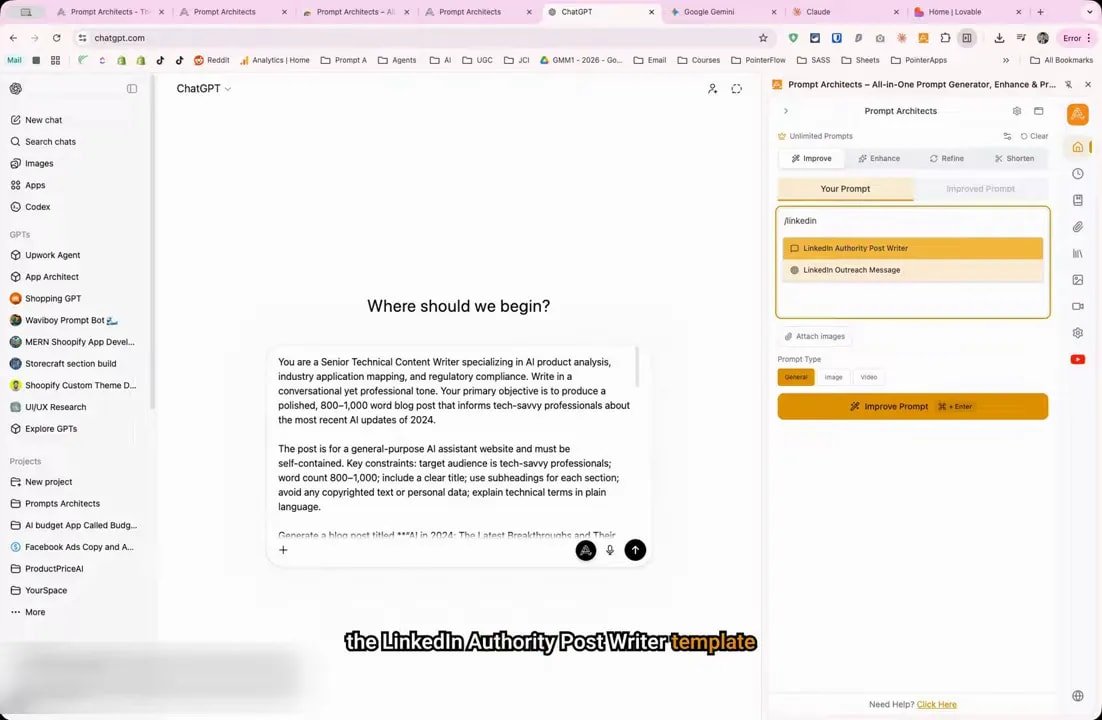
That means you’re not just getting a vague suggestion. You’re loading a complete prompt framework you can use and adapt.
Inside the sidebar, you can explore different sections such as context and browse through a large prompt template library with thousands of ready-to-use options for different purposes.
This is one of the strongest parts of Prompt Architects. It reduces blank-page paralysis. Instead of inventing structure from scratch every damn time, you can pull from tested templates and customize them.
Browse prompt categories in the sidebar
The sidebar also includes category-based browsing, which makes the template library easier to navigate when you don’t have an exact search term in mind.
Inside these sections, you’ll find:
Thousands of prompt templates
Dedicated image prompt libraries
Dedicated video prompt libraries
Settings options
This is helpful if your work spans multiple formats. A lot of people still treat prompting like a pile of random notes. That’s lazy-thinking nonsense. Prompt Architects organizes prompts into usable systems so you can find what you need without digging through a digital junk drawer.
Use the web app to explore image prompt templates
Beyond the extension sidebar, the web app includes a broader template library.
In the main app tab, open the Template Library and click into Image Prompts. As you scroll through the collection, each image generation prompt includes a sample output.
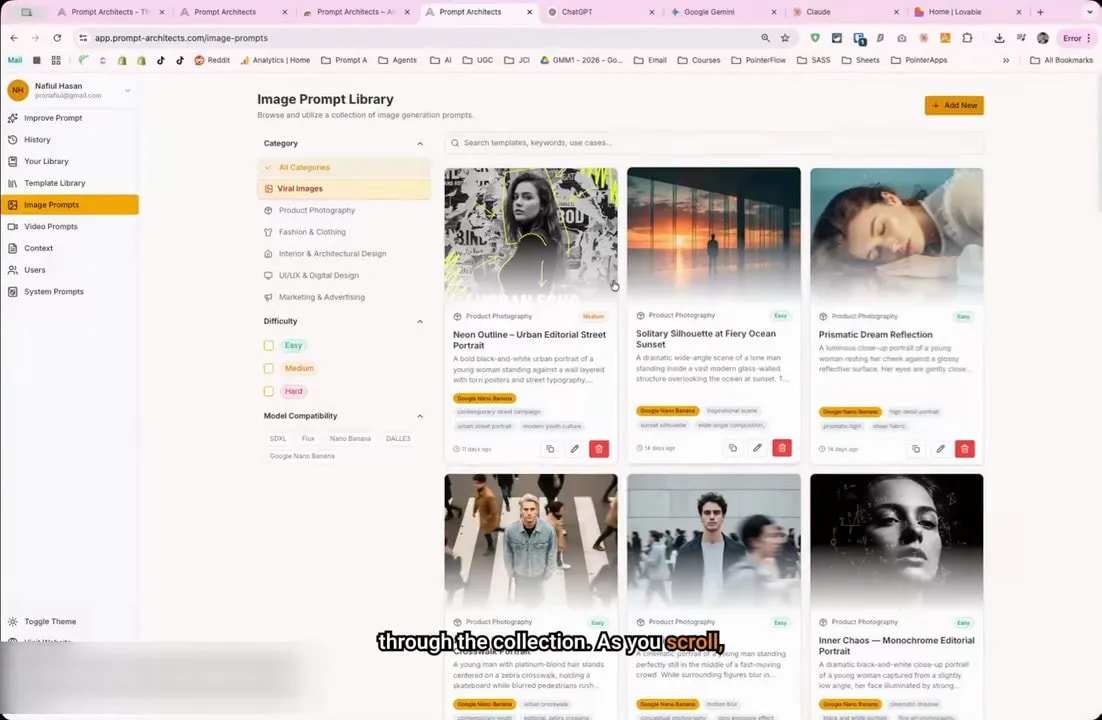
That preview is a big deal. It shows what the result can look like when you use that prompt, which helps you judge whether the prompt actually fits your goal before you use it.
Instead of guessing from the wording alone, you get visual proof of what kind of output the prompt is designed to produce.
Browse video prompt templates by category
The same template library includes Video Prompts.
Open that section and you can filter prompts by category, including:
UGC
Product demos
Lifestyle
Brand
And other categories
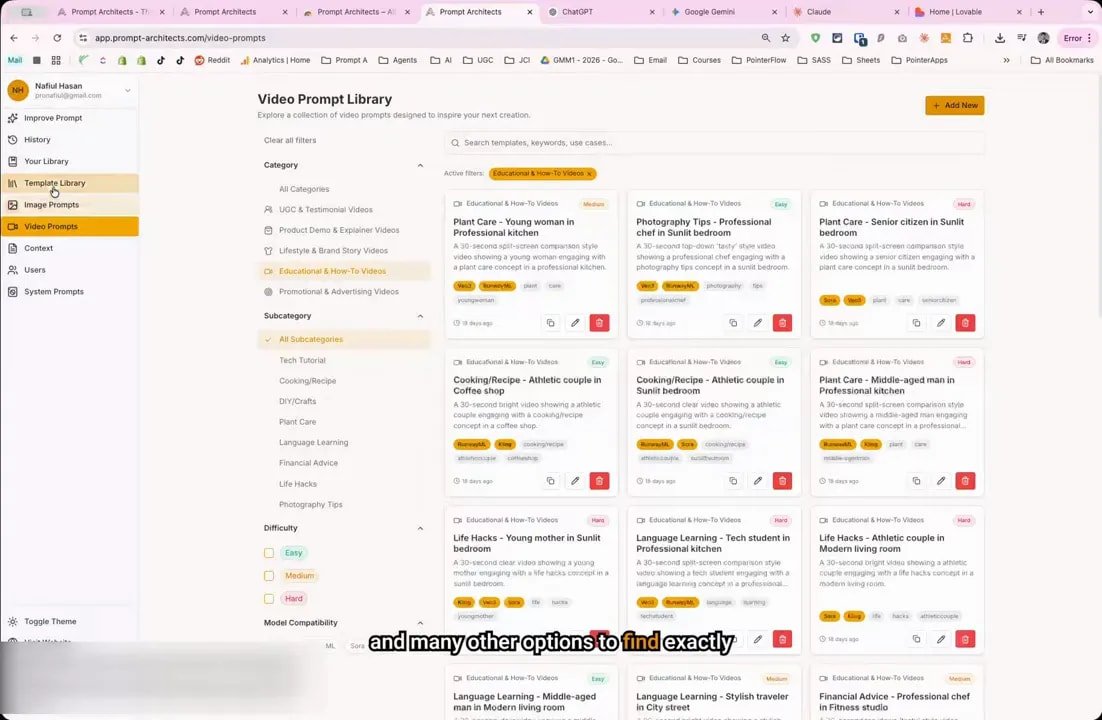
This makes it easier to find the right prompt for the type of video content you want to generate, rather than rummaging through a giant unfiltered list and pretending that counts as a workflow.
For anyone creating across multiple content formats, this is where Prompt Architects starts becoming more than a text-prompt helper. It turns into a practical prompt library for creative production.
Explore web design and UX templates with live previews
Another useful part of the web app is the Web Design and UX section.
Filter the template library by web design and UX, then select a template such as a product-led SaaS homepage prompt. On that template page, you can open a live preview of the design generated from the prompt.
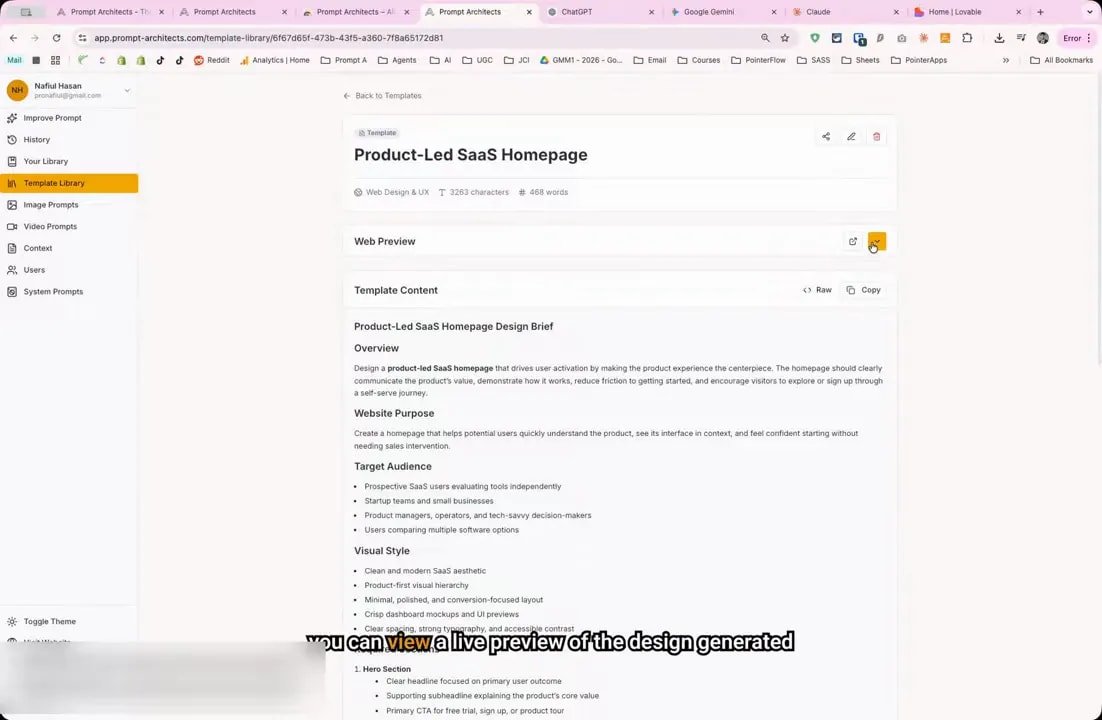
You can even open the preview in a new tab to see the full result.
That’s smart. A lot of prompt libraries dump text at you and call it a day. Here, Prompt Architects gives you a way to visualize what the prompt produces, which makes the template far more useful in practice.
When you’re done exploring and want to go back to active prompt work, just click Improve Prompt to return to the main dashboard.
What Prompt Architects actually changes in your workflow
The real win with Prompt Architects is not just that it improves prompts. Plenty of tools promise that.
The bigger shift is that it brings prompt writing, prompt improvement, prompt storage, and prompt discovery into one system.
That means you can:
Write a rough idea and turn it into a structured prompt
Improve prompts directly where you’re already working
Refine or shorten prompts depending on the goal
Save strong prompts for reuse
Search and load templates instantly
Browse specialized libraries for text, images, video, and UX
Use preview-supported templates to understand likely outputs faster
If your current system is “type something, get mediocre output, tweak it manually, lose the good version, repeat forever,” then yes, that system is as effective as a screen door on a submarine.
Prompt Architects replaces that chaos with something reusable and organized.
FAQ about Prompt Architects
What is Prompt Architects used for?
Prompt Architects is used to improve, enhance, refine, shorten, save, and organize prompts. It also provides libraries of prompt templates for general use, image generation, video generation, and web design or UX tasks.
Does Prompt Architects work inside ChatGPT?
Yes. Prompt Architects adds an icon inside the ChatGPT input field so you can improve prompts directly where you type them. The extension sidebar also stays available while working across platforms.
What is the difference between Improve Prompt and Enhance in Prompt Architects?
Improve Prompt upgrades a prompt directly in context, such as inside ChatGPT. Enhance takes a basic request and turns it into a more detailed, structured version that you can then use or refine further.
Can Prompt Architects save previous prompts?
Yes. It includes prompt history for recently generated prompts and a saved prompts library so you can store and reuse your best-performing prompts later.
Does Prompt Architects include prompt templates?
Yes. Prompt Architects includes thousands of templates. You can search them with a forward slash in the input field or browse categories in the sidebar and web app.
Are there image and video prompt libraries in Prompt Architects?
Yes. The template library includes dedicated image prompts and video prompts. Image prompts come with sample outputs, and video prompts can be filtered by categories such as UGC, product demos, lifestyle, and brand.
Can Prompt Architects help with web design and UX prompts?
Yes. Prompt Architects includes web design and UX templates, and some of those templates include live previews so you can see the generated result before using or adapting the prompt.
Stop winging it
Bad prompting is expensive. It wastes time, muddies results, and tricks people into thinking the AI is the problem when the real problem is the flimsy instruction they fed it.
Prompt Architects is built to clean that up. You can write simply, get a structured prompt, improve it fast, save what works, and build a usable library instead of reinventing the wheel every session.
Close this and keep freelancing your way through prompt chaos if you want. Or use Prompt Architects to build a workflow that actually behaves like a system.